Troubleshooting
This guide helps you diagnose and resolve common issues with the Stellar Disbursement Platform (SDP).
Quick Reference
| Symptom | Likely Cause | Jump to |
|---|---|---|
| Payment stuck in "Pending" | TSS issue, missing accounts, or insufficient funds | Pending Payments |
| "Resource Missing" in logs | Account doesn't exist on network | Pending Payments |
Payment failed with op_no_trust | Receiver missing trustline for asset | Operation Errors |
Payment failed with op_underfunded | Distribution account low on funds | Operation Errors |
Payment failed with op_no_destination | Receiver account doesn't exist | Operation Errors |
| Receiver didn't get invitation | Scheduler config or messaging provider issue | Invitation Issues |
| Receiver didn't get OTP | Mismatched contact info or provider issue | OTP Issues |
| Channel account errors after testnet reset | Channel accounts were wiped | Recreating Channel Accounts |
Payments
Payment Stuck in "Pending"
Payments can get stuck in "Pending" status for several reasons. Work through these checks in order.
1. Check TSS Service Health
The Transaction Submission Service (TSS) must be running and reachable.
# Check TSS container status
docker ps | grep tss

# View recent TSS logs
docker logs --tail 100 <tss-container-name>
If TSS is down or unreachable, restart it and monitor the logs for errors.
2. Verify Distribution Account Funds
The distribution account must have sufficient XLM to cover the payment amount plus transaction fees.
Use Stellar Expert or the Stellar CLI to check the balance.
3. Validate Channel Accounts
Channel accounts may become invalid after testnet resets. Look for errors like this in your logs:
Example error: "Resource Missing"
time="2025-12-19T18:43:37.017Z" level=error msg="[DRY_RUN Crash Reporter] unexpected TSS error: preparing bundle for processing: building transaction: horizon response error: getting account detail: horizon error: \"Resource Missing\" - check horizon.Error.Problem for more information" app_version=6.0.1 asset=XLM channel_account=GBKEVxxxx ...
Diagnosis: This error means either the destination account or the channel account doesn't exist on the network. Check both using Stellar Expert.
Solution:
- Destination Account Missing
- Channel Accounts Missing
The receiver's account hasn't been created on the Stellar network. The account must be funded with the minimum balance (currently 1 XLM on mainnet) before it can receive payments.
Channel accounts may disappear after testnet resets. See Recreating Channel Accounts below.
Payment Failed with Operation Error
When a payment fails, the Status History shows a Horizon error with operation codes that explain why the transaction was rejected.
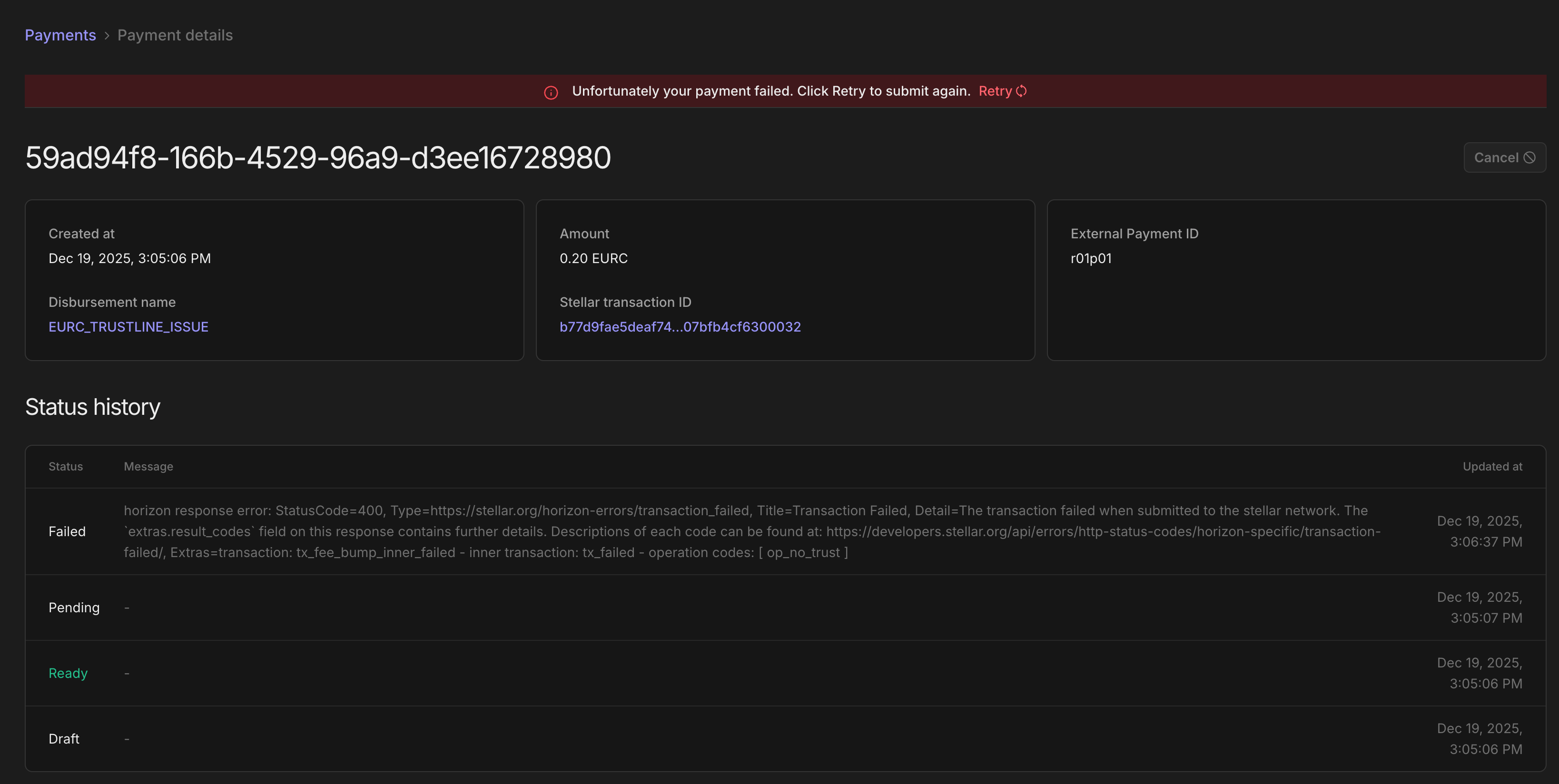
Reading the Error
Look for the operation codes at the end of the error message:
Extras=transaction: tx_fee_bump_inner_failed - inner transaction: tx_failed - operation codes: [ op_no_trust ]
The operation code (e.g., op_no_trust) tells you exactly what went wrong.
Common Operation Codes
| Code | Meaning | Solution |
|---|---|---|
op_no_trust | Receiver hasn't established a trustline for this asset | Receiver must add a trustline for the asset (e.g., EURC) before they can receive it |
op_underfunded | Source account doesn't have enough of the asset | Fund the distribution account with more of the asset |
op_no_destination | Destination account doesn't exist | Receiver must create and fund their Stellar account first |
On Stellar, accounts must explicitly "trust" an asset before receiving it. This is a security feature—it prevents spam tokens. The receiver needs to add a trustline for the specific asset (like EURC) using their wallet or a Stellar tool.
Example: op_no_trust
Full error message
horizon response error: StatusCode=400, Type=https://stellar.org/horizon-errors/transaction_failed,
Title=Transaction Failed, Detail=The transaction failed when submitted to the stellar network.
The `extras.result_codes` field on this response contains further details.
Descriptions of each code can be found at: https://developers.stellar.org/docs/data/apis/horizon/api-reference/errors/http-status-codes/horizon-specific/transaction-failed/,
Extras=transaction: tx_fee_bump_inner_failed - inner transaction: tx_failed - operation codes: [ op_no_trust ]
Diagnosis: The receiver account exists but hasn't added a trustline for the asset you're trying to send (in this case, EURC).
Solution: The receiver must add a trustline for the asset before the payment can succeed. Once they've done so, use the Retry button in the dashboard to resubmit the payment.
For a complete list of operation result codes, see the Stellar documentation.
Receiver Communications
Issues with invitations, OTPs, and other messages sent to receivers.
Receiver Not Receiving the Invitation
When you trigger a disbursement targeting an unregistered receiver (via email, SMS, or WhatsApp), they should receive an invitation link to register. If they haven't received it, work through these checks.
1. Verify Scheduler Configuration
The invitation job runs on a schedule controlled by an environment variable:
SCHEDULER_RECEIVER_INVITATION_JOB_SECONDS=30
Check: Is this set to a reasonable interval (10–60 seconds)? If it's set too high or missing, invitations may be significantly delayed.
2. Check SDP Logs for Submission Failures
The SDP logs will show whether the message was sent and if the messaging provider accepted or rejected it.
# Look for messaging-related entries
docker logs <sdp-container-name> 2>&1 | grep -iE "invitation|otp|message"
Common provider issues:
| Provider | Typical Failure | What to Check |
|---|---|---|
| AWS SES | Rate limiting, sandbox mode | Are you in production mode? Check sending limits in AWS console |
| Twilio (SMS) | Geofencing, unverified numbers | Is the destination country enabled? Is your sender ID verified? |
| Twilio (WhatsApp) | Template not approved, 24h window | Is your message template approved? Are you outside the 24h conversation window? |
If you're testing, check spam/junk folders first—especially for email invitations.
3. Verify Receiver Contact Info
Double-check that the receiver's contact information (email, phone number) in the disbursement file is:
- Correctly formatted (e.g., phone numbers include country code)
- Valid and reachable
- Not a duplicate that was already processed
Receiver Not Receiving OTP During Registration
During registration, receivers enter the contact details (phone number or email) that the payer used when submitting the disbursement. The SDP sends an OTP to verify ownership of that contact method.
1. Check for Mismatched Contact Info (Most Common)
The most frequent cause is the receiver entering a different email or phone number than what the payer submitted—often without realizing it.
How to verify: Check the receiver_registration_attempts table, which logs attempts from contacts that couldn't be matched to any receiver in the system.
SELECT * FROM sdp_<tenant_name>.receiver_registration_attempts
ORDER BY created_at DESC
LIMIT 20;
If you see the receiver's attempted contact info here, it means:
- They entered something different from what's on file
- You may need to coordinate with the receiver to confirm which contact info is correct
- If the payer made an error, you may need to update the receiver's contact info or create a new disbursement
2. Check for Provider Issues
If the contact info matches but the OTP still isn't arriving, the issue is likely with the messaging provider. See Check SDP Logs for Submission Failures above for common provider issues and how to diagnose them.
Channel Accounts
Recreating Channel Accounts
After a testnet reset, your channel accounts no longer exist on-chain but are still referenced in the database. You need to clean up invalid accounts and create new ones.
Run these commands inside the TSS container:
# Step 1: Remove invalid accounts from the database
./stellar-disbursement-platform channel-account verify --delete-invalid-accounts

# Step 2: Create new channel accounts (adjust the count as needed)
./stellar-disbursement-platform channel-account ensure 10
The ensure command is idempotent—it only creates accounts if you have fewer than the specified number. Running ensure 10 when you already have 10 valid accounts does nothing.
Still Stuck?
If you've worked through the relevant sections and the issue persists:
- Collect logs from all relevant services (SDP, TSS, Anchor Platform)
- Note the exact error message and when it started occurring
- Check for recent changes to configuration, environment, or network (e.g., testnet reset)
Contact us either by opening an issue on our Backend GitHub repository or Front-end GitHub repository with the details above and the version of SDP you're running. We'll help you troubleshoot further! We're also available on Discord in the #bulk-disbursements channel.